How to Make Phone Battery Last Longer: 12 Settings & Habits
Learn how to make phone battery last longer with 12 easy settings and habits for iPhone and Android, from brightness to heat. Most take under a minute!
In this article
- Battery Life vs. Battery Lifespan: Two Different Problems
- Settings That Make Phone Battery Last Longer Today
- How Much Does Each Setting Help?
- Heat: The Biggest Threat to Your Battery’s Lifespan
- Charging Habits That Protect Your Battery
- When to Replace Your Phone Battery
- If Your Battery Still Drains Fast
- Your Next Step
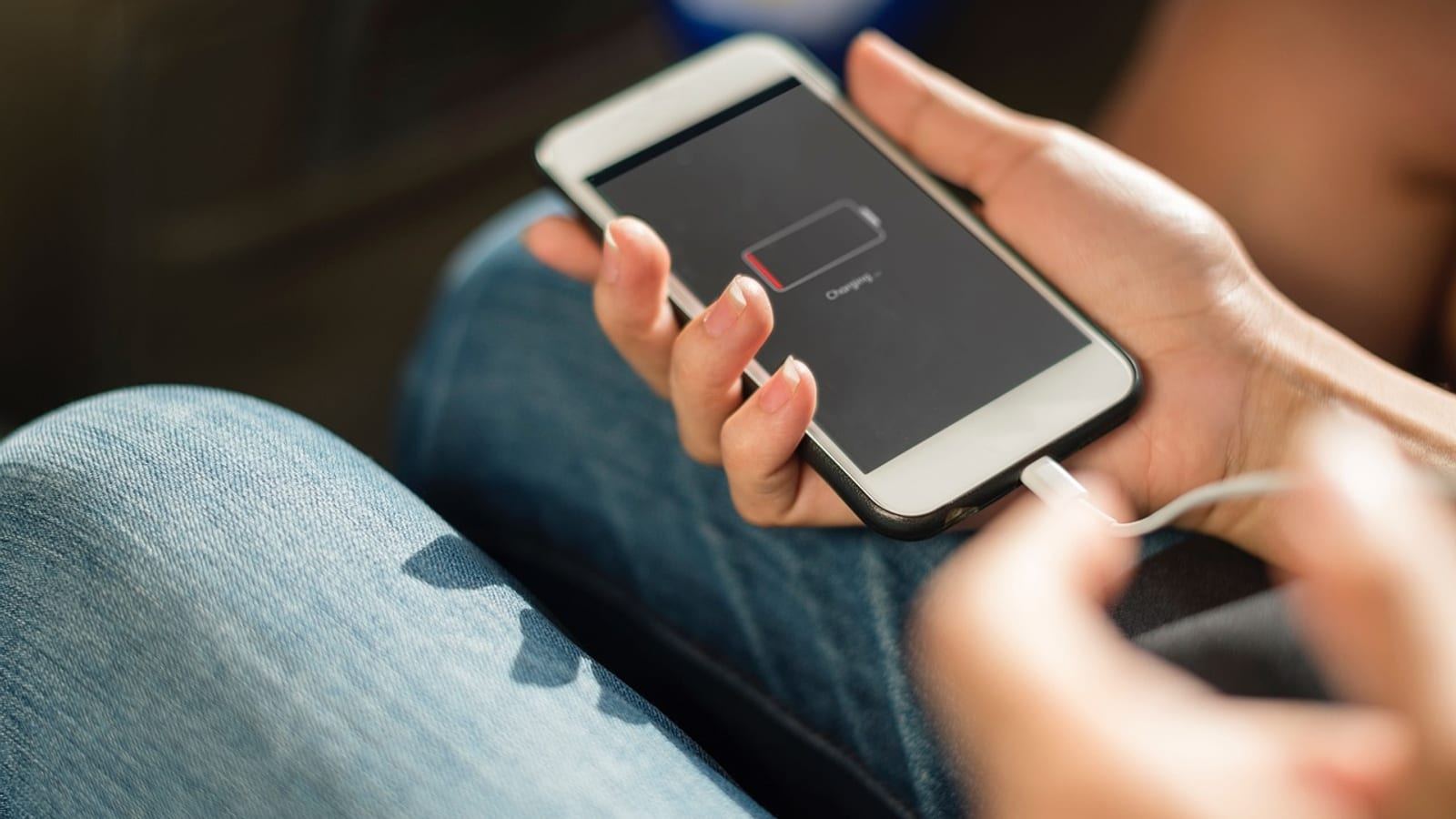
Your phone hits 20% before dinner, and the charger is across town. You don’t need a new phone to fix that, and you don’t need a bulky battery case either. Here is how to make phone battery last longer with 12 settings and habits that work on iPhone and Android, plus the one thing that quietly ages every battery faster: heat.
Most of these take under a minute. Start with the first four and you should feel the difference by tomorrow.
Key takeaways
- Brightness, Low Power Mode and background activity are the quickest wins for getting through one day.
- Heat is the real long-term enemy: Apple says temperatures above 95°F can permanently damage battery capacity.
- Long stretches at 0% or at a hot 100% are harder on the battery.
- Optimized (iPhone) or Adaptive (Pixel) charging handles the gentle part for you.
- Check battery health once or twice a year.
Battery Life vs. Battery Lifespan: Two Different Problems
Apple separates the two. Battery life is how long your phone runs on one charge. Battery lifespan is how long the battery lasts before it needs replacing. Habits 1 through 8 stretch today’s battery life, and habits 9 through 12 protect the lifespan.
Settings That Make Phone Battery Last Longer Today
Paths below are for a recent iPhone or Google Pixel. Other Android brands use similar menus with different names, so try the search bar in Settings.
1. Turn On Auto-Brightness
The screen is one of the biggest power users in your phone, and Apple’s battery tips include dimming it or using Auto-Brightness. Let the phone adjust to the room.
- iPhone: Settings > Accessibility > Display & Text Size > Auto-Brightness.
- Pixel: Settings > Display & touch > Adaptive brightness. On other Android phones, look under Display.
2. Use Low Power Mode or Battery Saver Earlier
Don’t wait for the 20% pop-up. Apple says Low Power Mode lowers brightness, sets Auto-Lock to 30 seconds, turns off some visual effects, and turns off automatic downloads, email fetch and Background App Refresh.
- iPhone 15 and later: Settings > Battery > Power Mode.
- iPhone 14 and earlier: Settings > Battery.
- Pixel: Settings > Battery > Battery Saver. Samsung and others often call it Power saving.
Make it automatic
On iPhone, add the Low Power Mode button to Control Center, or say “Hey Siri, turn on Low Power Mode.” To make it automatic, create a Personal Automation in the Shortcuts app that runs when battery level falls below a number you choose. On Android, look for a schedule option inside Battery Saver.
3. Limit Background App Refresh
Apps quietly check for new content even when you aren’t using them. On iPhone, go to Settings > General > Background App Refresh and turn it off for apps that don’t need to be current, such as games, or limit it to Wi-Fi.
On a Pixel, go to Settings > Battery > Battery usage, tap an app and check Allow background usage. Google suggests leaving Optimized on for most apps, so restrict only one that clearly drains the battery.
4. Set Location Access to “While Using”
Apps that check where you are all day keep your phone’s location hardware busy. On iPhone, open Settings > Privacy & Security > Location Services and choose While Using the App (or Never). On Android, look under Settings > Location > App location permissions and choose “Allow only while using the app.” Maps and ride apps need it. Most others don’t.
5. Use Dark Theme on an OLED Screen
On an OLED screen each pixel makes its own light, so dark pixels use less power and true black pixels are essentially off. On an LCD, the backlight stays lit either way, so the saving is small. Not sure which you have? Search your model name plus “display type.”
- iPhone: Settings > Display & Brightness > Dark.
- Pixel: Settings > Display & touch > Dark theme.
6. Shorten the Screen Timeout
On iPhone, set Settings > Display & Brightness > Auto-Lock to 30 seconds or 1 minute. On Android, use Settings > Display > Screen timeout.
7. Prefer Wi-Fi, and Use Airplane Mode in Dead Zones
Apple says Wi-Fi generally uses less battery than cellular, and that you should use your device where the signal is strong. If you’ll be without coverage for a while, switch on Airplane Mode so the phone stops searching.
8. Trim Notifications
Apple notes that notifications can wake your device often. Open Settings > Notifications and switch off alerts from apps that don’t deserve your attention.
How Much Does Each Setting Help?
Real savings depend on your phone and how you use it, so treat this as a rough ranking, not a promise.
| Setting or habit | Savings | Best for |
|---|---|---|
| Lower brightness / Auto-Brightness | Large | Everyone, especially outdoors |
| Low Power Mode / Battery Saver | Large | Days when no charger is in sight |
| Background App Refresh limits | Medium | Phones with lots of apps |
| Location set to “While Using” | Medium | Maps, weather and shopping apps |
| Dark theme | Medium | OLED screens only (small on LCD) |
| Wi-Fi and Airplane Mode in dead zones | Medium | Commuters, hikers, basements |
| Shorter screen timeout | Small | Anyone who puts the phone down lit |
| Fewer notifications | Small | Busy lock screens |
| Keeping it cool, optimized charging | Large over the years | Long-term battery capacity |
Heat: The Biggest Threat to Your Battery’s Lifespan
Lithium-ion batteries age chemically, and heat speeds that up. Apple calls 62° to 72°F (16° to 22°C) the ideal zone and says temperatures above 95°F (35°C) can permanently damage battery capacity.
Did you know?
Cold and heat hurt differently. Apple says very cold conditions can temporarily shorten battery life and may even make a phone turn off, and normal battery life returns once it warms up. Heat damage, on the other hand, can be permanent.
9. Keep It Out of Hot Places
Apple’s advice is blunt: don’t leave your phone in a parked car, where temperatures can pass the safe range, and avoid long stretches in direct sun. It also warns against extended GPS navigation, graphics-heavy games and long camera use in the heat.
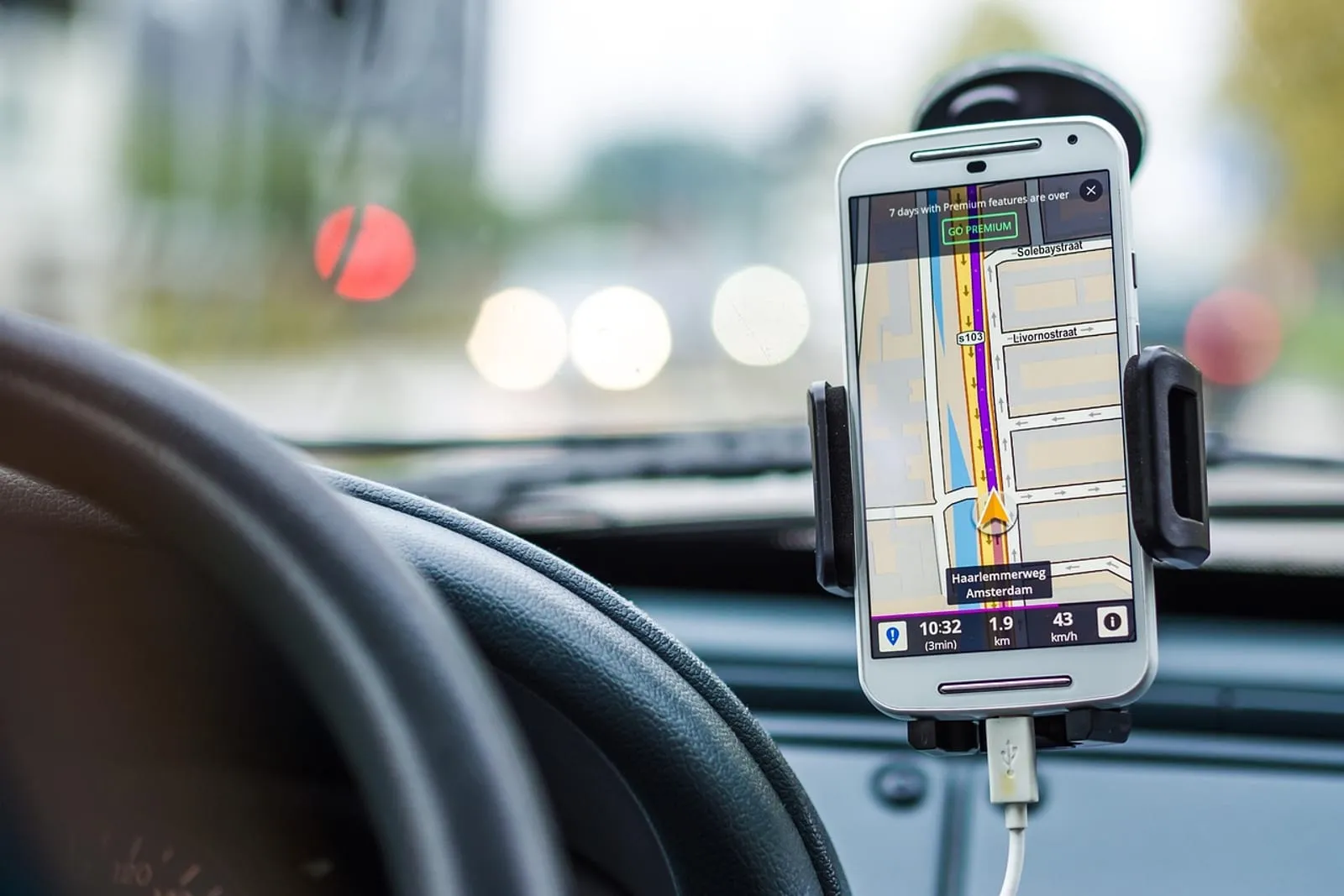
Heat stacks up: navigating, streaming and charging in the sun means three warm jobs at once.
Summer driving fix
If you navigate with your phone on the dashboard, move it out of direct sun and, when you can, aim an air-conditioning vent at it.
10. Take Off a Thick Case If It Gets Warm While Charging
Apple says some cases can trap heat during charging, and recommends removing the case if the device gets hot. Wireless charging is handy, but it usually makes more heat than a cable, so use the cable on a hot day.
Temperature warning
If your iPhone shows a temperature warning, follow Apple’s steps: turn it off, move it somewhere cooler and out of direct sun, and let it cool down.
Charging Habits That Protect Your Battery
11. Aim for the Middle, Not the Extremes
You don’t need to unplug at exactly 80%. Top-ups are fine: Apple defines one charge cycle as discharging 100% of your battery’s capacity in total, not necessarily from a single charge. Using 50% today and 50% tomorrow adds up to one cycle.
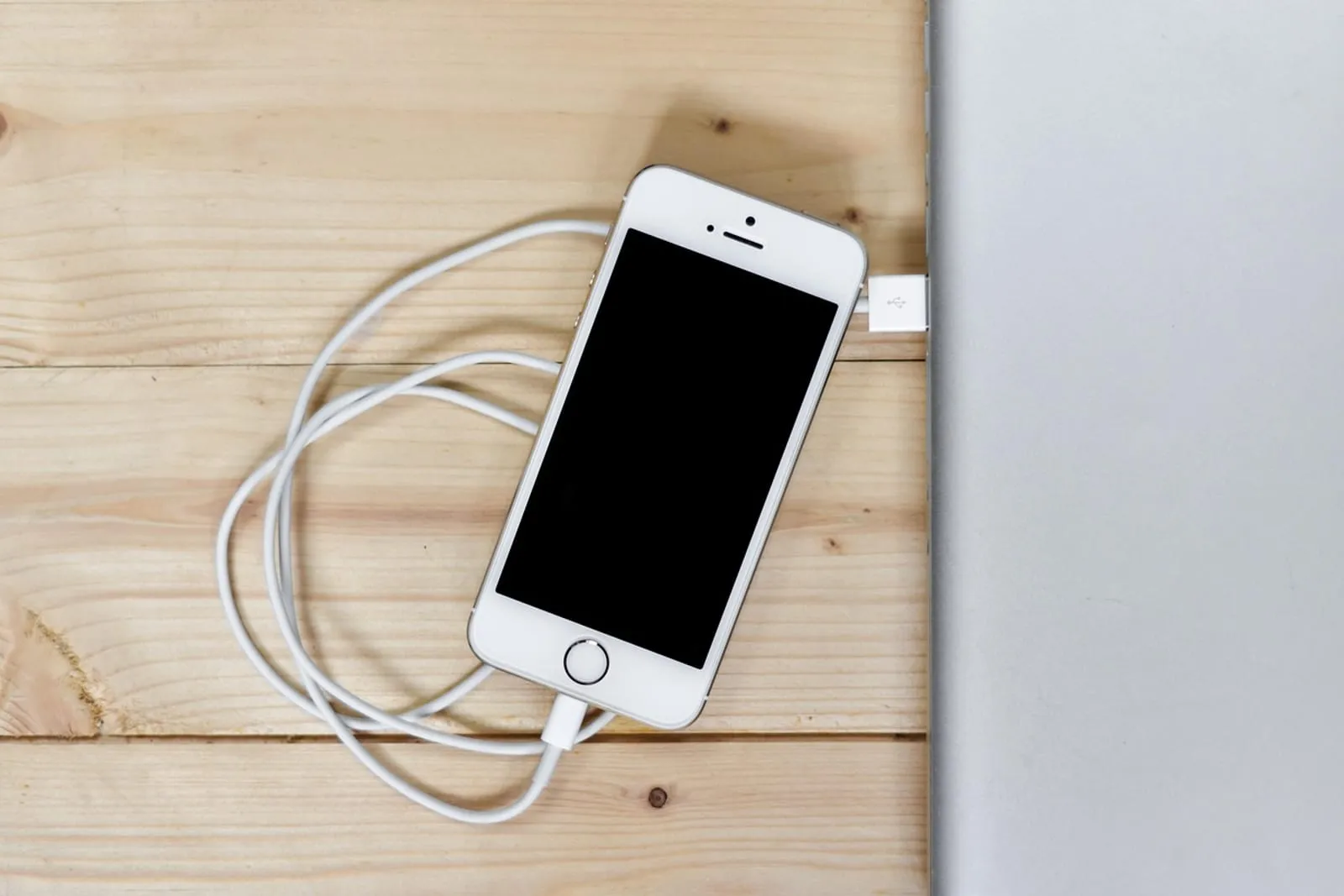
What helps is avoiding the extremes for long periods: living at 0%, or sitting at 100% for hours on a warm surface. Apple’s advice for long-term storage points the same way, since it recommends a charge of around 50% rather than full or empty.
| Myth | Fact |
|---|---|
| Closing apps from the app switcher saves battery | Apple says iPhone manages background apps itself; close an app only if it’s unresponsive |
| You should drain it to 0% before charging | No need. That habit dates back to older battery types |
| Dark mode saves power on every phone | Mostly on OLED screens |
| Charging overnight ruins a battery | Not ruined, but long, hot stretches at 100% add wear; optimized charging reduces that |
12. Turn On Optimized or Adaptive Charging
Apple’s Optimized Battery Charging learns your routine and delays charging past 80% when it predicts a long session, aiming to finish just before you unplug. It needs at least 14 days to learn your habits.
- iPhone 14 and earlier: Settings > Battery > Battery Health & Charging.
- iPhone 15 and later: Settings > Battery > Charging. You can also set a charge limit from 80 to 100% in 5% steps.
- Pixel: Settings > Battery > Battery health > Charging optimization. Choose Adaptive Charging, or Limit to 80% on a Pixel 6a or later.
Good default
If you’re usually near a charger, an 80% limit is a gentle everyday setting. Switch back to full before a long day out.
When to Replace Your Phone Battery
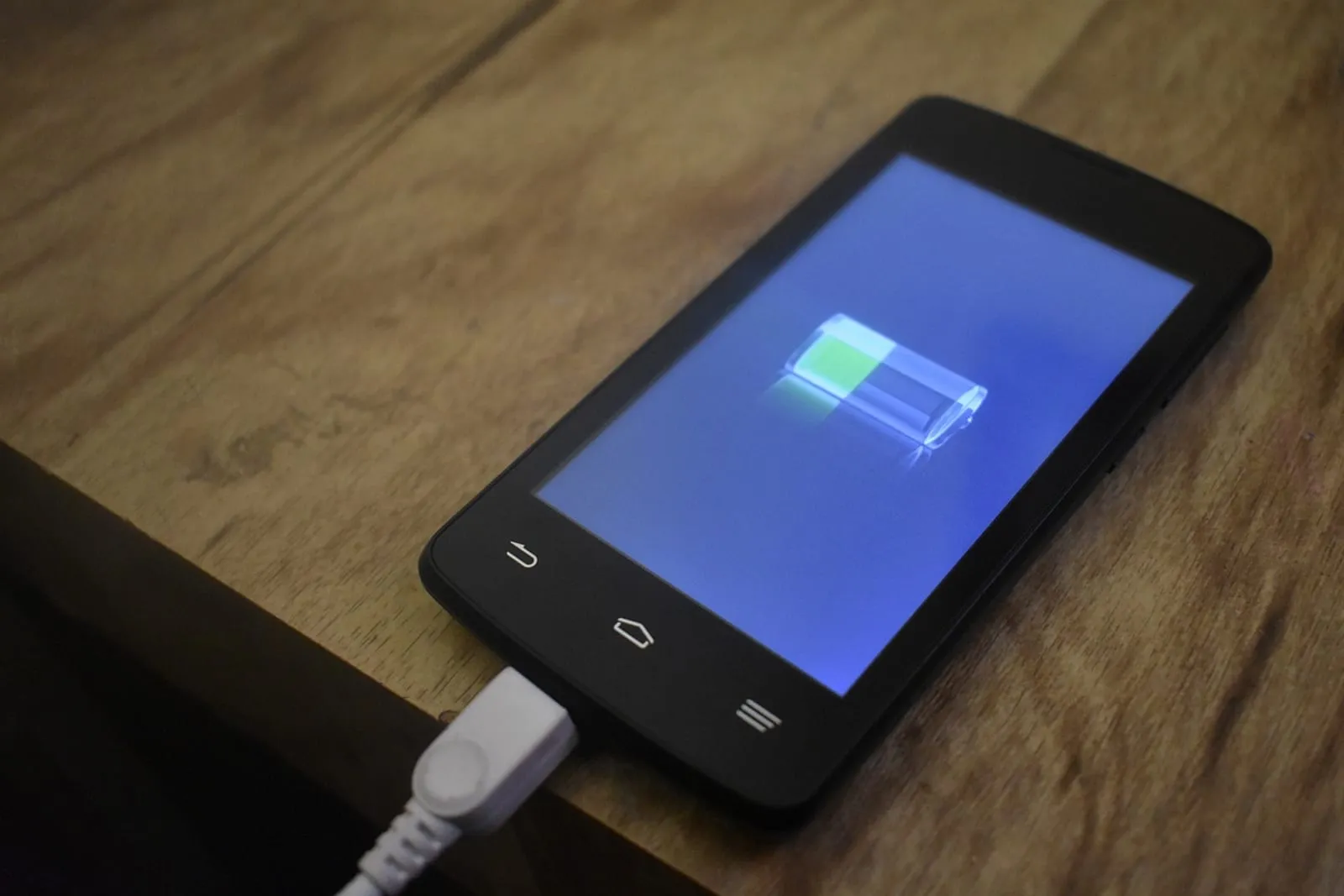
Every battery loses capacity as it ages, and a fresh one can give an older phone a second life.
- iPhone 15 and later: Settings > Battery > Battery Health.
- iPhone 14 and earlier: Settings > Battery > Battery Health & Charging.
- Pixel: Settings > Battery > Battery health on supported models.
Apple’s Maximum Capacity compares your battery to when it was new. Apple says iPhone 14 and earlier keep up to 80% of original capacity after 500 complete charge cycles, and iPhone 15 models after 1,000, under ideal conditions. If Battery Health shows a service message, Apple recommends a replacement.
A replacement is also worth considering if the phone shuts down at 20-30% or needs charging twice a day despite everything above. If the back is bulging or the screen is lifting, stop charging and take it to a repair shop right away. A full phone is a separate headache; our guide to freeing up iPhone storage covers it.
If Your Battery Still Drains Fast
Find the battery hog
On iPhone, open Settings > Battery and scroll to the app list. A “Background Activity” label means an app used power while you weren’t looking. On a Pixel, check Settings > Battery > Battery usage.
| What you notice | Try this |
|---|---|
| Drain jumped right after a software update | Wait a few days; Apple says background tasks after an update can temporarily affect battery life |
| One app tops the battery list | Limit its background activity, update it or delete it |
| Phone feels warm in your pocket | Restart it and look for a stuck app |
| Phone dies at 30% | Check battery health; the battery may be worn |
| A pop-up or text says your battery is “damaged” or has a virus | Don’t tap it. It’s likely a scam; see how to spot phishing emails and text scams |
Your Next Step
Spend five minutes now: turn on Auto-Brightness, set Low Power Mode to start automatically, and switch on optimized or adaptive charging. Then check your battery health so you know where you stand. For more, see Apple’s guide to maximizing battery life and lifespan and Google’s Pixel battery help.
If your laptop is the slow one, try these tips to speed up a slow laptop. And since a well-tuned phone still needs a protected inbox, learn the red flags in our guide to spotting phishing emails.
Frequently Asked Questions
Does dark mode really save battery?
Is it bad to charge my phone overnight?
When should I replace my phone battery?
Does Low Power Mode harm my phone?
You might also like
More in Tech →
How to Free Up iPhone Storage Without Deleting Photos
Learn how to free up iPhone storage without deleting photos: offload apps, trim Messages, clear Safari data and more. Reclaim gigabytes in 15 minutes!

How to Spot Phishing Emails and Text Scams: 10 Red Flags
Learn how to spot phishing emails and text scams with 10 clear red flags, a real-vs-fake table and what to do if you clicked. Report them in 2 minutes!
Clean Laptop Keyboard Safely: 7 Steps for Mac and Windows
Clean laptop keyboard dust, crumbs and grime safely with compressed air, 70% isopropyl alcohol and a microfiber cloth. Mac and Windows tips. Try it today!