How to Free Up iPhone Storage Without Deleting Photos
Learn how to free up iPhone storage without deleting photos: offload apps, trim Messages, clear Safari data and more. Reclaim gigabytes in 15 minutes!
In this article
Nothing ruins a moment like the “iPhone Storage Almost Full” alert popping up just as you open the camera. The good news is that you can free up iPhone storage without deleting a single photo. Start with the hidden clutter, such as unused apps, old message attachments, browser data and forgotten downloads, and you can often reclaim several gigabytes in about 15 minutes. The menu paths below are for iOS 18 and later, and older versions use similar names.
Key takeaways
- Start at Settings → General → iPhone Storage. It shows exactly what is using your space.
- Offload Unused Apps removes the app but keeps its documents and data, so nothing is lost.
- Messages attachments and Safari data quietly add up to gigabytes for many people.
- Optimize iPhone Storage keeps full-quality originals in iCloud and smaller copies on your phone.
- Photos in Recently Deleted still take up space for up to 30 days, so empty that album.
Start With the iPhone Storage Report
Before you delete anything, let your iPhone tell you where the space went. Open Settings → General → iPhone Storage. After a few seconds you will see a colored bar and a list of apps sorted by size, with a “Last Used” date under each one. If a menu looks different on your phone, type “storage” into the search bar at the top of Settings.
Near the top you may also see Recommendations, each with an estimate of how much space it could save. They are a handy shortcut, and the steps below explain what each one does so you stay in control. Apple has a short guide to checking iPhone storage if you want the official version.
Use this table to decide where to start:
| What you see in the list | Do this first | Time |
|---|---|---|
| A big game or app you haven’t opened in months | Offload the app | 10 seconds |
| Messages near the top | Review large attachments | 5 minutes |
| Safari holding a lot of data | Clear website data | 1 minute |
| Photos as the largest item | Turn on Optimize iPhone Storage | 3 minutes |
| Files or a “Documents & Data” figure growing | Clean out Downloads | 5 minutes |
Free Up iPhone Storage by Offloading Apps
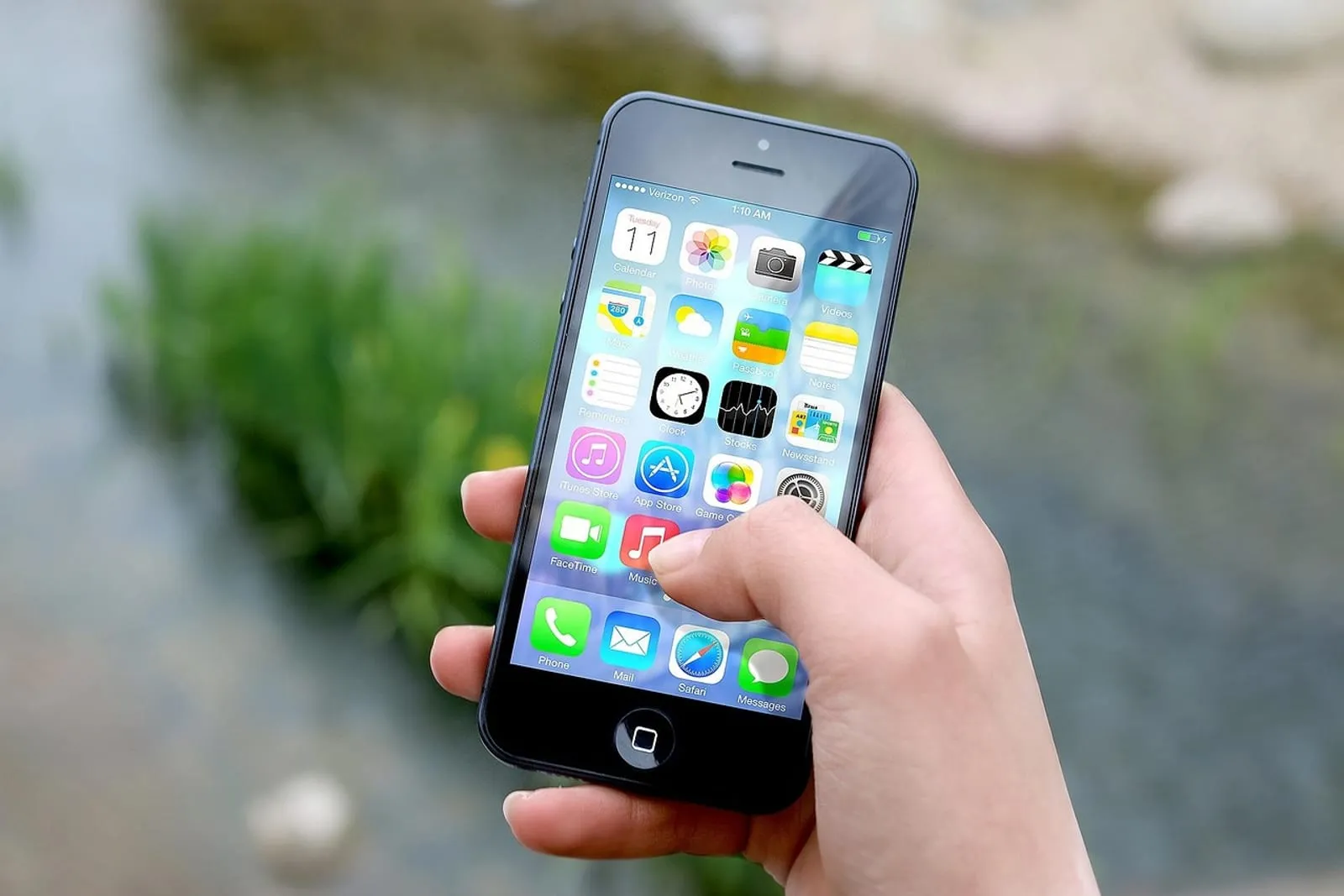
Apps are usually the fastest win, because a single game can take several gigabytes. iOS has two ways to remove an app, and they are not the same thing: Offload keeps your data, Delete removes everything.
Offload Unused Apps automatically
Go to Settings → App Store, scroll down and turn on Offload Unused Apps. When storage runs low, your iPhone removes apps you rarely open but keeps their documents and data. The icon stays on your Home Screen with a small cloud symbol, and tapping it reinstalls the app with your data intact.
Offload one app right now
Go to Settings → General → iPhone Storage, tap an app and choose Offload App. Pick Delete App only when you are sure you won’t need its data. One catch: an offloaded app can only come back if it is still listed in the App Store, so check before you offload something you might want later.
Check the cache, not just the app size
Tap any app in the storage list and compare “App Size” with “Documents & Data”. If the data figure is far bigger than the app itself, it is mostly cache and downloads. Many apps have a built-in cleaner, for example WhatsApp (Settings → Storage and Data → Manage Storage) and Telegram (Settings → Data and Storage → Storage Usage). If an app has none, deleting and reinstalling clears the cache, as long as your account data lives online.
Trim Messages Without Losing Your Photos
Messages is often the sneakiest storage hog. Every photo, video, GIF and voice clip that anyone sends you is saved inside the conversation, and busy group chats pile up fast.
Go to Settings → General → iPhone Storage → Messages. You will see a breakdown of your biggest conversations and attachment types such as photos, videos and GIFs. Tap one, choose Edit, select the items you don’t need and delete them. You can also open a conversation, tap the contact name at the top and review what’s been shared there.
Did you know?
Photos and videos you receive in Messages stay inside the Messages app’s storage unless you save them to Photos. That is why Messages can top the storage list even if you rarely open the Photos app.
Let old messages expire
On iOS 18 and later, go to Settings → Apps → Messages and tap Keep Messages under Message History (older versions: Settings → Messages). Choose 1 Year or 30 Days instead of Forever, and your iPhone will clear out older messages and their attachments automatically.
This one deletes for good
Switching Keep Messages from Forever to a shorter period permanently removes older messages and attachments, and your iPhone asks you to confirm. Save any attachments you want to keep in Photos or Files first, and make sure you have a recent backup.
Clear Safari Data and Check the Files App
Every site you visit leaves cache, cookies and offline data behind. Go to Settings → Apps → Safari → Clear History and Website Data (older versions: Settings → Safari), choose a time range and confirm. Apple says this doesn’t change your AutoFill information, so saved passwords and addresses stay where they are.
For more control, scroll to the bottom of the Safari settings, tap Advanced → Website Data and swipe left on the heaviest sites to remove just those.
Clearing website data signs you out of most sites, so keep your passwords handy before you start. It also clears your browsing history, which is a useful bonus.
Clean out Downloads in Files
Open the Files app, tap Browse, then On My iPhone and look inside Downloads. Old PDFs, installers, zip files and saved videos hide here. Delete what you don’t need, then open Recently Deleted on the Browse screen and empty that too, since deleted files stay there for up to 30 days.
While you’re in Settings → General → iPhone Storage, scan the list for Music, Podcasts, TV and streaming apps. Offline downloads you have already watched or heard are easy to remove, and you can redownload them later.
Shrink Photos and Videos Without Deleting Them
Photos are the one thing you don’t want to lose, so these steps save space while keeping every picture.
Turn on Optimize iPhone Storage
Go to Settings → [your name] → iCloud → Photos and make sure iCloud Photos (shown as Sync this iPhone) is on. Then choose Optimize iPhone Storage. Your iPhone keeps space-saving versions on the device, stores the full-resolution originals in iCloud, and downloads an original whenever you open it. Apple’s iCloud Photos guide says it starts with the photos and videos you access least.
The free iCloud plan includes only 5 GB, so check that your plan can hold the whole library before you rely on this.
Did you know?
With iCloud Photos on, deleting a photo on your iPhone deletes it from iCloud and your other devices too. It sits in Recently Deleted for 30 days, then it is gone for good. If you want space without losing anything, use Optimize iPhone Storage rather than deleting.
Empty Recently Deleted
Open Photos, scroll down to Utilities and tap Recently Deleted (older versions: Albums tab, then Recently Deleted). Unlock it with Face ID or your passcode, tap Select → Delete All, and confirm. This only removes photos you have already chosen to delete, and it frees the space right away.

Park big videos in iCloud Drive
Long videos are the heaviest single files on most phones. In Photos, scroll to Media Types and tap Videos, then check Screen Recordings too, because they are often large and forgotten. For the few huge clips you want to keep, you can move them out of your photo library.
Move, don’t delete
Open the video, tap Share, then Save to Files and choose iCloud Drive (or AirDrop it to a Mac). Play the saved copy once to confirm it works, then delete the original from Photos. You keep the video, and the gigabytes leave your phone.
Merging duplicates is another safe move. In Photos, scroll to Utilities and look for Duplicates, which appears only when your iPhone finds matches. Tap Merge and it keeps the best version of each photo and combines details such as favorites and captions, so no unique photo disappears. Empty Recently Deleted afterward.
Switch to smaller camera formats
Go to Settings → Apps → Camera → Formats (older versions: Settings → Camera) and choose High Efficiency, which saves photos and videos in formats that take up less space than Most Compatible. Under Record Video, each option shows roughly how much space one minute of footage will use.
Did you know?
Recording in 4K at 60 fps can use several times more space per minute than 1080p at 30 fps. Unless you plan to edit the footage, 1080p looks great on a phone screen and costs far less storage.
These camera settings only affect new shots, so your existing library stays as it is.
Which Fix Saves the Most?
Use this chart to pick your next move, and note the risk column before you tap anything.
| Fix | Space you can win back | Risk to your data |
|---|---|---|
| Offload Unused Apps | Medium to high, especially games | None, data is kept |
| Large Messages attachments | Medium to high | Deletes the items you pick |
| Keep Messages: 1 Year | Medium | Deletes older messages for good |
| Clear Safari website data | Low to medium | Signs you out of sites |
| Optimize iPhone Storage | High | None, originals stay in iCloud |
| Empty Recently Deleted | Depends on what is inside | Permanent |
| Clean out Downloads | Low to high | Deletes the files you pick |
A few myths are worth clearing up before you start:
| Myth | Fact |
|---|---|
| “Offloading an app deletes its data.” | It removes the app but keeps its documents and data. |
| “Optimize iPhone Storage throws away my full-quality photos.” | Originals stay in iCloud, and your iPhone keeps smaller versions. |
| “Deleting a photo frees space immediately.” | It sits in Recently Deleted for up to 30 days and still uses space. |
| “Clearing Safari data deletes my saved passwords.” | AutoFill information is not changed, but you will be signed out of sites. |
If iPhone Storage Still Won’t Budge
Cleaned up and still stuck? These are the usual culprits.
- The numbers didn’t change. Wait a minute, then restart your iPhone. The storage screen can take a while to refresh.
- System Data is huge. It holds caches, logs and other files iOS manages itself, and it usually shrinks on its own when space is needed. A restart and the latest iOS update can help, but you can’t delete it by hand.
- An iOS update won’t install. Offload a few big apps and try again. Your iPhone may also offer to remove apps temporarily during the update and reinstall them afterward.
- Your library is simply bigger than your phone. The long-term fix is a larger iCloud plan or a regular backup to a computer.
Laptop running out of room too? The storage tips in our guide to speed up a slow laptop apply the same logic.
Your Next Step
Set a five-minute timer and do the three quickest wins right now: turn on Offload Unused Apps, clear Safari website data and empty Recently Deleted. Then check iPhone Storage again to see how much you gained.
To keep it from creeping back, tie the check to something you already do each month, such as the first Sunday coffee in your morning routine. And while you are decluttering your devices, take 10 minutes to clean your laptop keyboard safely, because crumbs and skin oils build up there much like files do on a phone.
Frequently Asked Questions
Why is my iPhone storage full when I don't have many photos?
Does offloading an app delete its data?
Is Optimize iPhone Storage safe for my photos?
How much free space should I keep on my iPhone?
You might also like
More in Tech →
Clean Laptop Keyboard Safely: 7 Steps for Mac and Windows
Clean laptop keyboard dust, crumbs and grime safely with compressed air, 70% isopropyl alcohol and a microfiber cloth. Mac and Windows tips. Try it today!

How to Speed Up a Slow Laptop: 12 Tips for Windows and Mac
Learn how to speed up a slow laptop with 12 proven tips for Windows and Mac, from startup apps to storage, settings and upgrades. Most take under 10 minutes!

Apple Cider Vinegar Hair Rinse: Does It Work?
Does an apple cider vinegar hair rinse really make hair shinier? See the science, the safe ratio, how often to rinse and who should skip it. Try it once!