Clean Laptop Keyboard Safely: 7 Steps for Mac and Windows
Clean laptop keyboard dust, crumbs and grime safely with compressed air, 70% isopropyl alcohol and a microfiber cloth. Mac and Windows tips. Try it today!
In this article
Crumbs rattling under the keys, a spacebar that sticks, letters worn shiny from oily fingertips: if that sounds familiar, your keyboard is overdue for a wash. This guide shows how to clean laptop keyboard keys, gaps and palm rest in about 10 minutes, using tools you probably own already. The golden rule is simple: a little alcohol on a cloth, and never any liquid sprayed onto the laptop itself.
Key takeaways
- Shut the laptop down and unplug it before you clean anything.
- Use compressed air at an angle, in short bursts, with the can held upright.
- Use isopropyl alcohol at 70% or higher on a cloth or swab, damp but never wet, and never spray it on the keys.
- Don’t pop off laptop keycaps unless your manufacturer says you can.
- A quick weekly brush and a monthly deep clean keep most keyboards in good shape.
What You Need Before You Start
You don’t need a special kit. Gather these first, and the whole job takes 10 to 15 minutes:
- A microfiber cloth that doesn’t shed lint
- A can of compressed air with the straw attachment
- Isopropyl alcohol at 70% or higher (or 70% isopropyl alcohol wipes)
- Cotton swabs
- A clean, soft brush, such as an unused makeup brush or small paintbrush
- A flashlight (your phone light works fine)
Keep this quick do-and-don’t table nearby:
| Safe | Never |
|---|---|
| Lint-free microfiber cloth | Abrasive cloths or rough paper towels |
| 70%+ isopropyl alcohol applied to the cloth | Spraying any liquid straight onto the keys |
| Short bursts of compressed air, can upright | Shaking, tilting or inverting the can |
| Soft brush or cotton swab | Bleach, hydrogen peroxide or aerosol cleaners |
| Wiping hard, flat surfaces | Getting moisture into ports and openings |
How to Clean Laptop Keyboard Keys: 7 Safe Steps
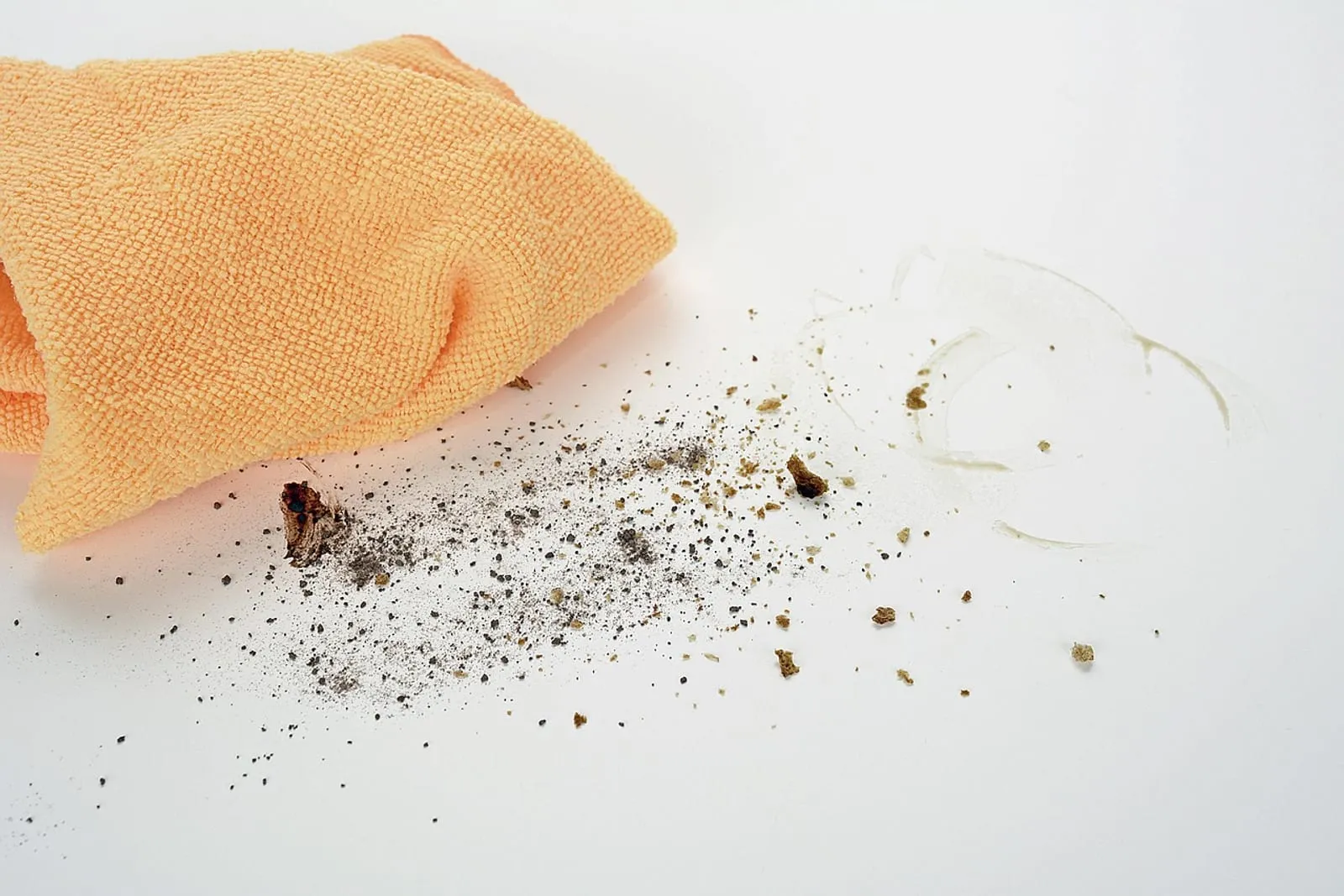
Work from the dry methods to the damp ones. Loose debris comes out first, so you never rub grit across the keys with a wet cloth.
Step 1: Power down and unplug
Shut the laptop down completely (sleep mode doesn’t count), unplug the charger and disconnect USB devices. If your laptop has a removable battery, take it out. Even for dry cleaning, a powered-off laptop protects you from stray key presses, and it becomes essential once you add any dampness.
Step 2: Look first
Hold a flashlight at a shallow angle across the keys. Side light shows crumbs, hair and grime that are invisible head-on, so you know where to focus.
Step 3: Blow out the loose debris
Hold the laptop tilted at about a 75-degree angle, close to upright but not vertical. Apple’s MacBook keyboard guidance suggests spraying compressed air with the straw in a left-to-right motion, then rotating the laptop and repeating from each side. Use short bursts, keep the straw an inch or so from the keys and keep the can upright.
Did you know?
Most cans of “compressed air” don’t contain ordinary air. They hold a liquefied gas, often difluoroethane, which turns cold as it expands. Tilt or invert the can and it can spit freezing liquid onto your keyboard.
Step 4: Brush it out
Sweep between the keys with the soft brush, flicking the debris toward the edge of the laptop. Brushing lifts the lint and hair that compressed air only pushes around.
Use a sticky note
Slide the sticky edge of a sticky note between the rows of keys and pull it out. It picks up crumbs, hair and dust the brush missed, and it leaves no wet residue.
Step 5: Wipe the keytops
Put a little 70% or higher isopropyl alcohol on the microfiber cloth until it is damp, not wet. If it drips when you squeeze it, it’s too wet. Wipe the keytops in one direction, then the palm rest and trackpad. Apple lists a 70% isopropyl alcohol wipe as acceptable for hard, nonporous surfaces such as the keyboard, and warns you to keep moisture out of any opening.
Higher concentrations such as 90% or 99% also work, and they evaporate faster, so less liquid lingers near the keys.
Never spray directly
Cleaner sprayed on a keyboard runs down between the keys and onto the circuitry, where you can’t wipe it out. Always apply it to the cloth first.
Step 6: Swab the edges
Press a cotton swab against the cloth until it is barely damp, then run it along the edges of each key and through the gaps. Swap in a fresh swab as soon as one turns gray.
Step 7: Dry and test
Leave the laptop open for a couple of minutes while the alcohol evaporates. Power it on, open a blank document and press every key, including the arrows and function row. A key that sticks or doesn’t register means something is still stuck, which the next section covers.
Fix Sticky Keys and Stubborn Grime
A sticky key usually means dried soda, coffee or sugar between the cap and the base. Don’t pry the key off. Do this instead:
- Power the laptop off.
- Dampen a swab with alcohol and run it around the edge of the key.
- Press the key several times while the swab is still wet, then wipe around it again.
- Let it dry for two minutes and test.
Press while you swab
Hold the swab along the edge of the sticky key and press the key down repeatedly. The small movement draws the alcohol into the gap and breaks up the sugary film that makes the key stick.
Letters that have turned shiny are a different story. The shine is polished plastic from friction and oil, and cleaning slows it but won’t reverse it. Wipe the oils off regularly and the finish lasts longer.
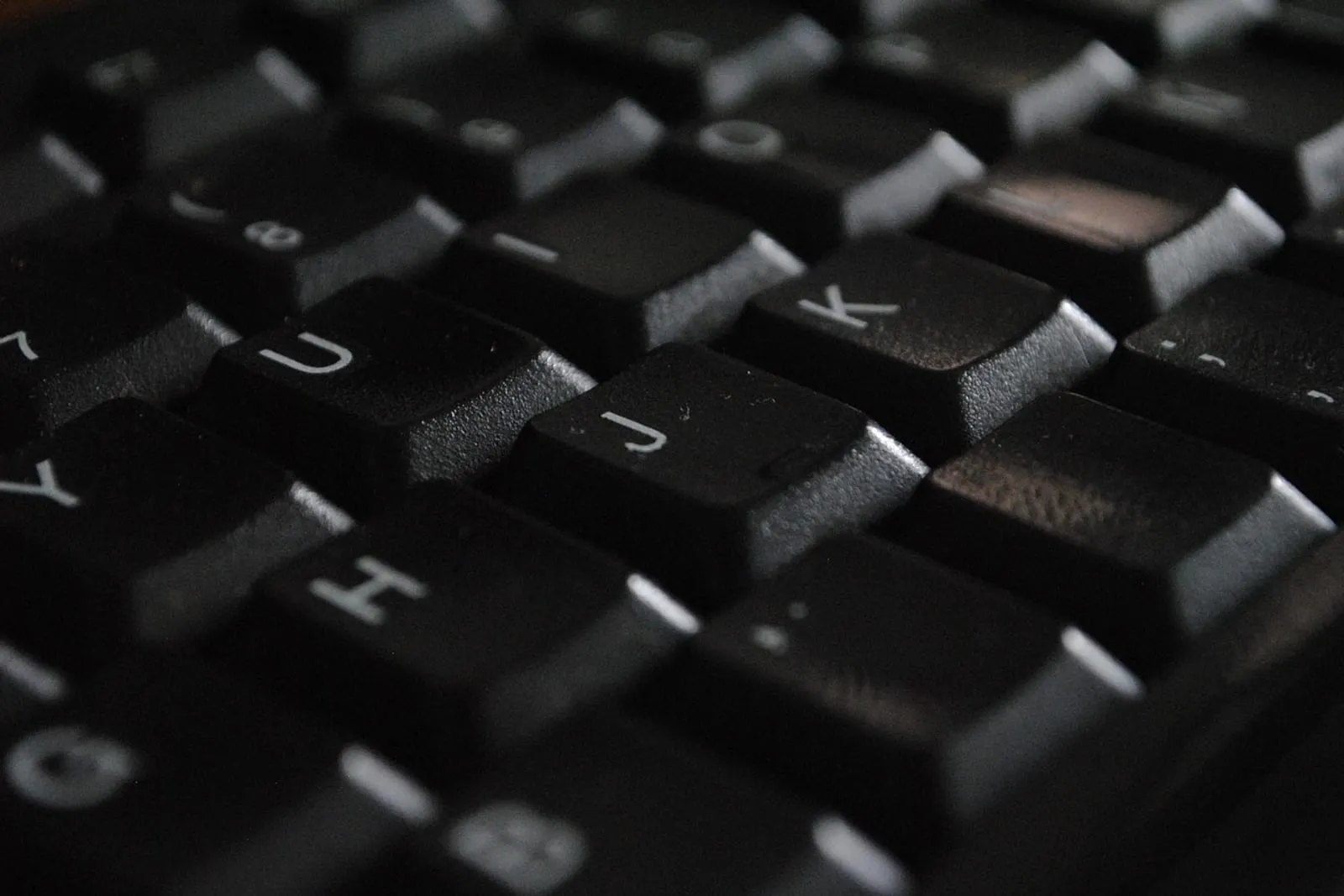
Still stubborn after two rounds? Stop there. Repeated scrubbing can wear off printed letters on some keyboards, and a persistent sticky key is a job for a repair shop.
MacBook vs. Windows: What’s Different
The method is the same, but the details change by model.
| Topic | MacBook | Windows laptop |
|---|---|---|
| Compressed air | Apple publishes a 75-degree, left-to-right method for MacBook keyboards | Follow the same angle, and check the manufacturer’s care page |
| Wiping | 70% isopropyl alcohol wipes are acceptable on hard surfaces | Most models are fine with a barely damp cloth, but check your brand |
| Removing keys | Not recommended | Not recommended unless the manual shows how |
| Special parts | Touch ID key (wipe gently, keep it dry) | Fingerprint readers, backlight and fabric palm rests |
Did you know?
The ultra-thin “butterfly” keyboards used on many MacBooks in the late 2010s were famous for jamming on a single crumb or speck of dust. Apple’s support page lays out a specific compressed-air method for exactly this kind of problem.
On a MacBook, use compressed air only on the keyboard and keep it away from ports and speaker grilles. Newer MacBooks have a different, more forgiving keyboard design, but the same cleaning steps apply.
On Windows laptops, the manufacturer’s care page (Dell, HP, Lenovo, ASUS and others) is worth a quick look. Fabric-covered palm rests, found on some Surface Laptops, generally shouldn’t get alcohol. Use a cloth barely dampened with mild soapy water instead, and check your model’s care guide on Microsoft’s support site.
How Often Should You Clean a Laptop Keyboard?
How often depends on how you use it. A laptop that lives on a desk and gets eaten over needs more care than one that travels in a bag and sees clean hands only.
| Task | How often | Time |
|---|---|---|
| Quick dry brush or burst of compressed air | Weekly | 1 minute |
| Wipe keys, palm rest and trackpad with a damp cloth | Every 2 weeks (weekly if shared) | 3 minutes |
| Full 7-step clean | Monthly | 10 to 15 minutes |
| Wipe-down after someone else uses it | Each time | 2 minutes |
Did you know?
Alcohol works best when it’s mixed with water. Health guidance such as the CDC’s disinfection guidelines puts the effective range at roughly 60 to 90%, which is why 70% is the standard choice for wipes. Pure alcohol isn’t automatically stronger.
A wipe-down removes skin oils, dust and visible grime, but a wipe isn’t a sterilizer. For a laptop, the practical habits matter more: wash your hands before you work and keep food off the keyboard. If desk lunches are the culprit, a batch of make-ahead lunches from our meal prep guide for beginners makes a proper lunch break easier.
Here is a quick myth check before you start:
| Myth | Fact |
|---|---|
| “A quick spray of cleaner on the keys is faster.” | Liquid runs under the keys and into the circuitry. Apply it to a cloth. |
| “99% alcohol is stronger than 70%.” | Alcohol disinfects best diluted with water. The higher-strength product simply evaporates faster. |
| “Popping off the keys cleans better.” | Laptop keycap clips break easily, so clean around the keys. |
| “Compressed air alone will do it.” | Straight-on blasts can push debris deeper. Use an angle, then brush. |
If Something Goes Wrong
Even careful cleaning can hit a snag. Here is how to handle the most common ones:
- A key stuck after cleaning. Power off and repeat the swab-and-press method. If it still sticks, a repair shop can fix it, since many keyboards can be replaced.
- Keys stopped working after cleaning. The keyboard may still be damp. Power off, wait at least an hour, then try again.
- You spilled a drink. Shut it down immediately, unplug it, and flip it open and upside down in a tent shape so the liquid can drain. Blot the outside, don’t power it on, and leave it for at least a day. Sugary or salty drinks leave residue, so a repair shop is the safer choice.
- The laptop is also slow, not just dirty. A clean keyboard won’t fix sluggish performance, but our guide to speed up a slow laptop will.

Your Next Step
Take 10 minutes tonight: power down, flashlight check, compressed air at an angle, brush, damp wipe, swab, then test every key. Put a reminder in your calendar for the first weekend of each month so it becomes routine.
Your phone is probably the other device you handle all day, and its clutter is digital. Once the keyboard is dry, follow our guide to free up iPhone storage so the two cleanups take less than half an hour.
Frequently Asked Questions
Can I use rubbing alcohol to clean my laptop keyboard?
How often should I clean my laptop keyboard?
Is it safe to remove the keys on a laptop keyboard?
What do I do if I spill a drink on my laptop?
You might also like
More in Tech →
How to Free Up iPhone Storage Without Deleting Photos
Learn how to free up iPhone storage without deleting photos: offload apps, trim Messages, clear Safari data and more. Reclaim gigabytes in 15 minutes!
How to Speed Up a Slow Laptop: 12 Tips for Windows and Mac
Learn how to speed up a slow laptop with 12 proven tips for Windows and Mac, from startup apps to storage, settings and upgrades. Most take under 10 minutes!

Apple Cider Vinegar Hair Rinse: Does It Work?
Does an apple cider vinegar hair rinse really make hair shinier? See the science, the safe ratio, how often to rinse and who should skip it. Try it once!