How to Speed Up a Slow Laptop: 12 Tips for Windows and Mac
Learn how to speed up a slow laptop with 12 proven tips for Windows and Mac, from startup apps to storage, settings and upgrades. Most take under 10 minutes!
In this article
A laptop that takes two minutes to boot and stalls every time you open a new browser tab is more than annoying; it quietly eats hours out of your week. The good news is that you can usually speed up a slow laptop without buying a new one. These 12 tips work on Windows 11, Windows 10 and macOS, start with the quickest fixes, and need no technical background.
Key takeaways
- Find the real bottleneck first with Task Manager (Windows) or Activity Monitor (Mac).
- Restarting, closing tabs and disabling startup apps fix most everyday slowdowns.
- Keep at least 15–20% of your drive free and install updates regularly.
- Skip “PC cleaner” apps; the built-in tools do the job safely.
- If your laptop still has a hard drive, an SSD upgrade is the biggest single improvement.
Before You Start: Find Out What’s Slowing It Down
Guessing wastes time. Spend two minutes checking what your laptop is actually struggling with.
- On Windows: press Ctrl + Shift + Esc to open Task Manager. On the Processes tab, click the CPU, Memory and Disk column headers to sort by what’s using the most.
- On a Mac: open Activity Monitor from Applications > Utilities (or press Cmd + Space and type its name). Check the CPU tab, then the Memory tab and its Memory Pressure graph at the bottom.
If one app is hogging resources, close or update it. If memory pressure is yellow or red, or your disk sits near 100% for minutes at a time, the tips below will tell you what to fix.
Back up first
Most tips here are safe, but before you uninstall software or change system settings, back up your important files with File History or OneDrive on Windows, or Time Machine or iCloud on a Mac.
Quick Ways to Speed Up a Slow Laptop in Under 5 Minutes
Start here. These four steps solve a surprising number of “my laptop is so slow” moments, and none of them cost anything.
1. Restart Your Laptop Properly
A restart clears memory, ends stuck background processes and finishes pending updates. On Windows, choose Restart rather than Shut down. On a Mac, a restart once a week is a good habit.
Did you know?
Windows Fast Startup works by saving a snapshot of the system’s core to a file on your drive, so the next boot is quicker. The catch: a laptop you only ever shut down never gets a truly fresh start. Restart skips the snapshot, which is why it clears up more problems.
2. Close Tabs and Remove Browser Extensions
Every open tab uses memory, and some extensions run constantly in the background. Close tabs you aren’t using, remove extensions you don’t recognize, and turn on built-in tab-saving features such as Chrome’s Memory Saver or Edge’s sleeping tabs.
3. Disable Startup Apps
Many apps quietly add themselves to startup, slowing every boot.
- Windows 11: open Task Manager > Startup apps, then right-click anything you don’t need right away and choose Disable.
- Mac: go to System Settings > General > Login Items (called Login Items & Extensions on newer macOS versions) and remove apps you don’t need at login.
Keep your antivirus, cloud sync and anything you rely on daily; disable the rest.
Sort by Startup impact
In Task Manager > Startup apps, click the Startup impact column to sort the list. Disable the apps marked High first, as long as you don’t need them the moment you sign in. Disabling is reversible: if something stops working, switch the app back to Enabled.
4. Install System and Driver Updates
Updates often include performance and stability fixes. On Windows, go to Settings > Windows Update and also check Advanced options > Optional updates for driver updates. On a Mac, open System Settings > General > Software Update.
Free Up Storage Space
A nearly full drive slows everything down, because your system needs room for updates, temporary files and virtual memory.
5. Keep at Least 15–20% of Your Drive Free
- Windows: go to Settings > System > Storage, review Cleanup recommendations, and turn on Storage Sense to clear temporary files automatically.
- Mac: open System Settings > General > Storage to see recommendations such as Optimize Storage and Empty Trash Automatically.
6. Uninstall Apps You Don’t Use
Trial software, old games and duplicate tools add up. On Windows, use Settings > Apps > Installed apps. On a Mac, drag unwanted apps from the Applications folder to the Trash, or use the app’s own uninstaller if it has one.
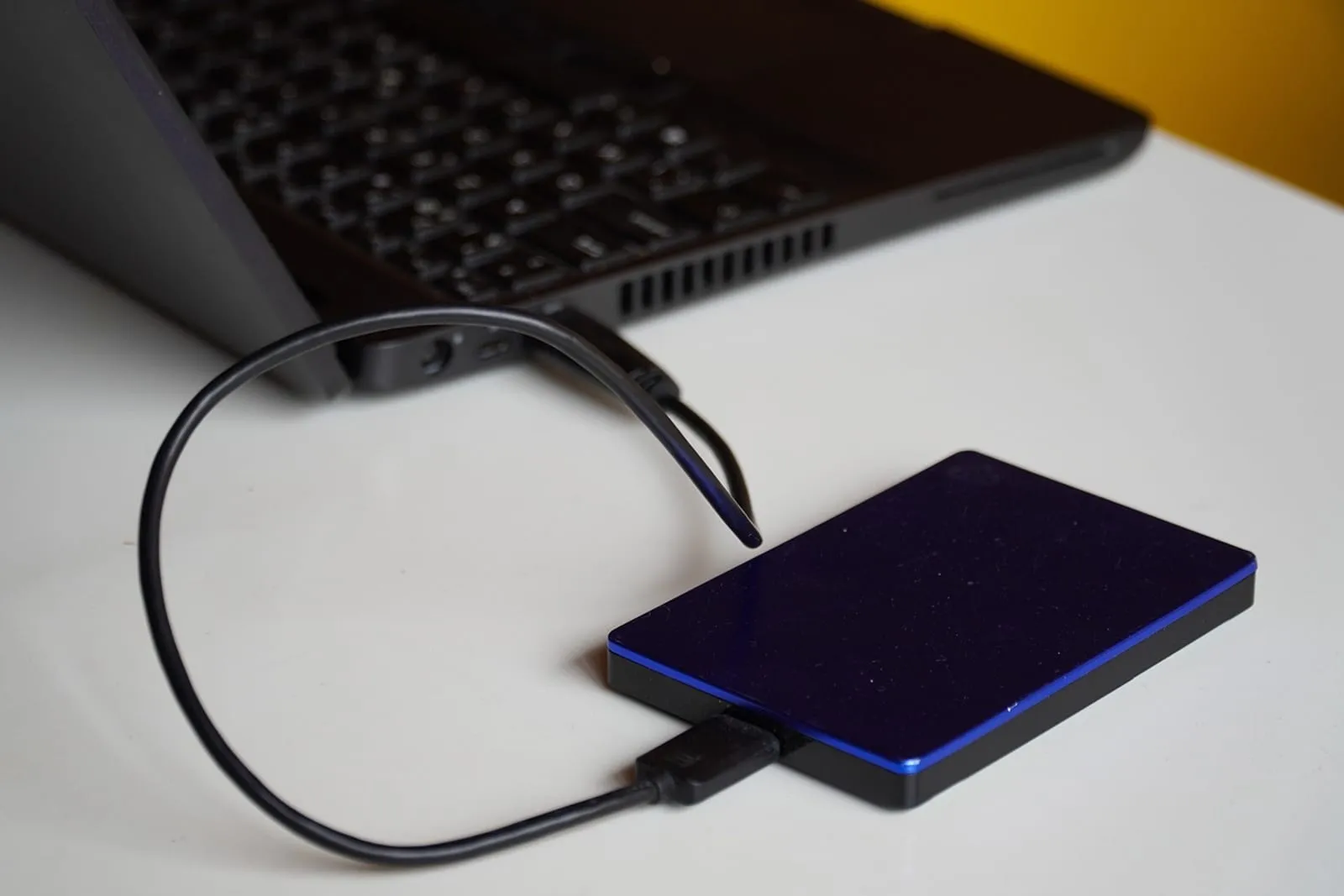
7. Move Big Files Off Your Laptop
Videos, photo libraries and old downloads are usually the biggest space hogs. Move them to an external drive, or use OneDrive Files On-Demand or iCloud Drive’s Optimize Mac Storage so files stay in the cloud until you open them. Your phone fills up the same way, so see how to free up iPhone storage without deleting photos.
Find your biggest files in seconds
On Windows, open File Explorer, click This PC and type size:gigantic in the search box to list every file over 128 MB. On a Mac, press Cmd + F in Finder, click the Kind menu, choose Other > File Size, then set it to “is greater than” 500 MB. Sort the results by size and you’ll see exactly which files are worth moving first.
Tune Your System Settings
8. Choose the Right Power Mode
Battery-saving modes deliberately slow your processor. On Windows 11, go to Settings > System > Power & battery and set Power mode to Best performance while you’re plugged in. On a Mac, check System Settings > Battery and make sure Low Power Mode isn’t switched on when you need speed.
9. Reduce Visual Effects
Animations and transparency look nice but cost resources on older machines. On Windows, go to Settings > Accessibility > Visual effects and turn off Animation effects and Transparency effects. On a Mac, open System Settings > Accessibility > Display and turn on Reduce motion and Reduce transparency.
10. Scan for Malware
Malware and adware can run silently and slow everything down. On Windows, open Windows Security > Virus & threat protection and run a scan. Macs have built-in protection called XProtect that runs automatically, so keeping macOS updated matters most.
Skip the “cleaner” apps
Registry cleaners and “speed booster” apps often promise dramatic results, and some are adware themselves. Microsoft and Apple both provide everything you need for routine cleanup, so stick with the built-in tools.
Hardware Fixes That Make the Biggest Difference
11. Upgrade to an SSD or Add RAM (If Your Laptop Allows It)
If your laptop still has a spinning hard drive, replacing it with a solid-state drive (SSD) is usually the single biggest speed boost you can buy; boot times can drop from minutes to seconds.
Did you know?
A traditional hard drive reads data with a tiny head that moves across spinning platters, a bit like a record player. An SSD stores data on flash memory chips with no moving parts, so it can reach any file almost instantly. That’s why swapping the drive often feels like getting a new laptop.
More RAM helps if you regularly hit memory limits: 8 GB is a sensible minimum for everyday multitasking on Windows 11, and 16 GB feels comfortable. Many thin laptops, including all Apple silicon Macs, have memory and storage soldered to the board, so check your model before buying parts.
Check what kind of drive you have
On Windows, open Task Manager > Performance and click your disk: it will say SSD or HDD. On a Mac, hold the Option key, choose Apple menu > System Information, select Storage and look for Medium Type.
12. Clean the Vents and Watch the Heat
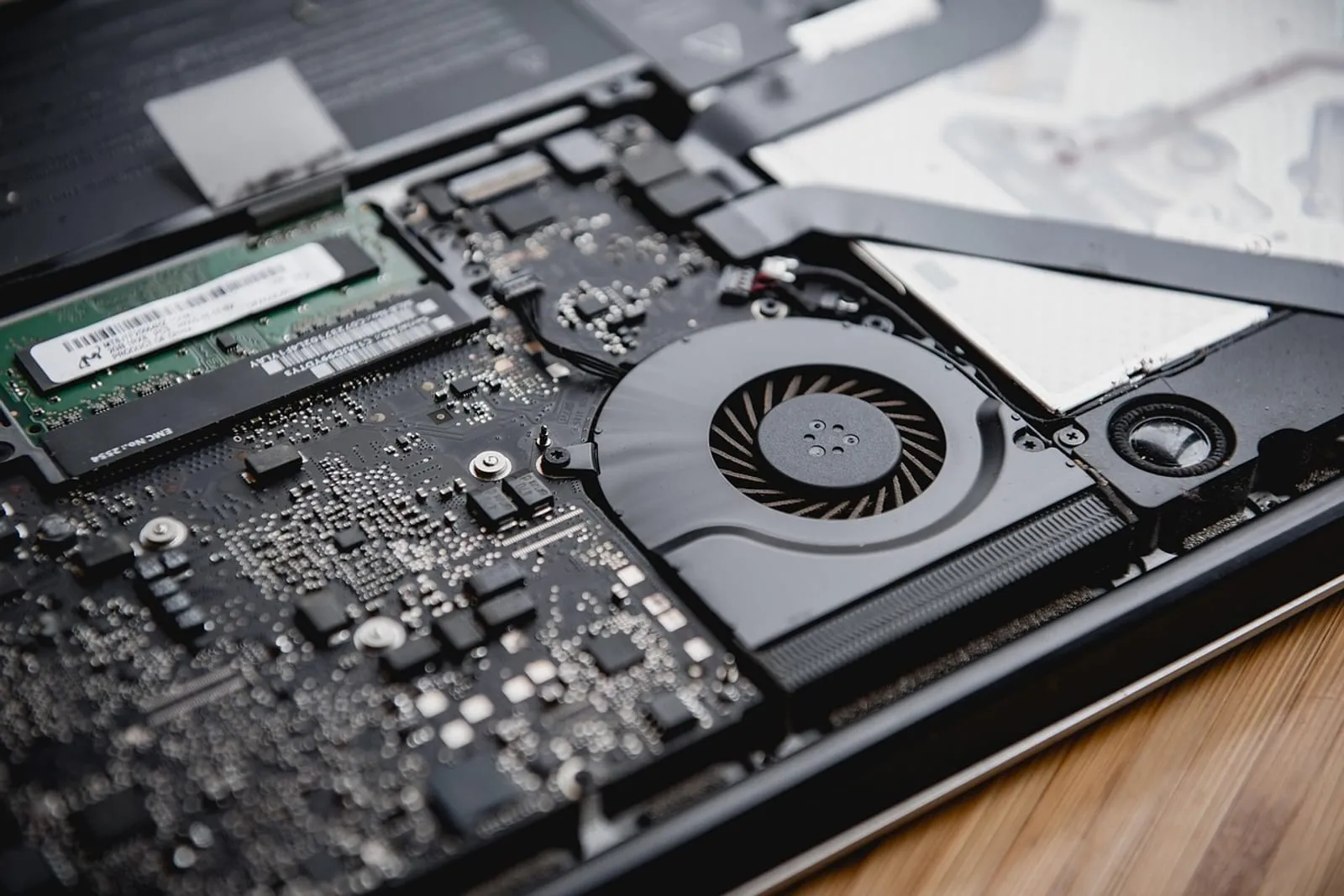
When a laptop overheats, it automatically slows its processor to cool down. Use it on a hard, flat surface rather than a bed or sofa, and with the laptop powered off, blow dust out of the vents with short bursts of compressed air. A simple laptop stand improves airflow too. While you’re at it, our guide to cleaning a laptop keyboard safely shows the right way to use compressed air and wipes.
Windows vs Mac: Where to Find Each Setting
| Task | Windows 11 | macOS |
|---|---|---|
| See what’s using resources | Task Manager (Ctrl + Shift + Esc) | Activity Monitor |
| Manage startup apps | Task Manager > Startup apps | System Settings > General > Login Items |
| Free up storage | Settings > System > Storage | System Settings > General > Storage |
| Install updates | Settings > Windows Update | System Settings > General > Software Update |
| Power settings | Settings > System > Power & battery | System Settings > Battery |
| Malware protection | Windows Security | XProtect (built in, automatic) |
For more detail, see Microsoft’s guide to improving PC performance in Windows and Apple’s If your Mac runs slowly page.
When It’s Time to Replace Your Laptop
Sometimes no tweak is enough. It may be time to upgrade if:
- Your laptop can’t run a supported operating system version. Windows 10 reached end of support in October 2025, so a machine that can’t run Windows 11 is on borrowed time.
- It has 4 GB of soldered RAM, or slow eMMC storage that can’t be replaced.
- The battery is swollen, or the laptop overheats even after cleaning.
- Repairs would cost more than half the price of a comparable new model.
The Bottom Line
Most slow laptops don’t need replacing. They need a restart, fewer startup apps, more free space and up-to-date software. Work through the quick fixes today, then make a 10-minute monthly tune-up a habit, just as weekly meal prep saves you time on busy weeknights. A laptop that boots fast also makes for a calmer start to the day; pair it with these morning routine ideas.
Frequently Asked Questions
Why is my laptop suddenly so slow?
Does restarting a laptop really make it faster?
How much free storage should a laptop have?
Is it worth upgrading to an SSD or adding RAM?
You might also like
More in Tech →
How to Free Up iPhone Storage Without Deleting Photos
Learn how to free up iPhone storage without deleting photos: offload apps, trim Messages, clear Safari data and more. Reclaim gigabytes in 15 minutes!
Clean Laptop Keyboard Safely: 7 Steps for Mac and Windows
Clean laptop keyboard dust, crumbs and grime safely with compressed air, 70% isopropyl alcohol and a microfiber cloth. Mac and Windows tips. Try it today!

Apple Cider Vinegar Hair Rinse: Does It Work?
Does an apple cider vinegar hair rinse really make hair shinier? See the science, the safe ratio, how often to rinse and who should skip it. Try it once!